Progressus Quick Guide to Resource Planning
This Quick Guide is your go-to resource for everything related to Progressus Resource Planning. Whether you're setting up features, processing resource data, or learning how to navigate key pages, you'll find all the essential information right here — including helpful training videos and step-by-step instructions. It's designed to make your experience smoother and more efficient, all in one convenient place.
Resource Planning Overview
Progressus Resource Planning provides a visual planning board that helps Project Managers and Resource coordinators assign the right people to the right Projects at the right time. It gives a clear view of each Resource’s availability and capacity, making it easy to schedule work, avoid overloads, and ensure projects stay on track.
Resource Planning Lines can be created directly from Project Budgets or built manually using the interactive planning boards, giving you flexibility in how you plan and manage Resource demand.
If all the Progressus Resource Planning features are used, the following is a sample workflow:
- Create Capacity
- Create and Assign Permissions
- Create Planning Lines from Outlook, Budgets, or manually
- Assign, Maintain, and Monitor Work Assignments in Planning Boards (4 Planning Boards, Gantt Chart.)
| Topic | Description | Link |
|---|---|---|
| Resource Planning Overview |
This article provides an overview of how Resource Planning works in Progressus and explains the different methods available for organizing Project work. Learn how Progressus supports Top‑Down, Bottom‑Up, and Hybrid planning approaches, with each section outlining typical planning workflows and how project managers and team members use tools such as the Project Wizard, Gantt Chart, Resource Planner, and Outlook Calendar to structure and manage work assignments. The article also highlights how Resources can plan their daily work using either the Outlook Calendar or the Resource Board, helping teams coordinate schedules and track progress effectively |
Resource Planning Overview |
Create Capacity
Capacity is the maximum number of hours a Resource can work within a given time period. Generating Capacity is an optional process, run to generate the maximum hours available for a Resource. It is used for the Resource management and budgeting in the Budget Matrix with Capacity page.
Resource Capacity can also be viewed in the Resource Planning page.
| Topic | Description | Link |
|---|---|---|
| Set Capacity for a Resource |
This article explains how to define the working Capacity of each Resource so Progressus can accurately calculate availability and scheduling. You’ll learn how to set a Resource’s normal work hours, assign Capacity on specific dates, and adjust Capacity for exceptions such as vacations, reduced schedules, or temporary increases. Properly defining Capacity ensures that project planning, allocation, and utilization reporting reflect real‑world availability. |
Set Capacity for a Resource |
| How to Update Capacity | This article explains how to update Capacity for a Resource. Accurate Capacity settings ensure that Progressus knows how much time a Resource is actually available to work, which directly affects planning and scheduling. | How to Update Capacity |
| View the Current Capacity for a Resource | This article explains how to define a Resource’s working Capacity so Progressus can accurately calculate availability for planning and scheduling. It walks through setting standard work hours and adjusting capacity for exceptions like vacations or temporary changes, ensuring resource utilization and project planning reflect actual availability. | View the Current Capacity for a Resource |
| View Group Capacity | This article shows how to review Capacity for Resource Groups, helping users understand overall availability across teams or skills. It explains how to view total hours, identify Capacity shortages or excess, and quickly assess whether a Resource Group can support upcoming Project demand. | View Group Capacity |
| View Capacity Entries | This article explains how to review detailed Capacity Entries for individual Resources, helping users understand exactly how their available hours are defined. It shows where to view standard hours, adjustments, and exceptions to verify that each Resource’s availability is accurate for planning and scheduling. | View Capacity Entries |
Create and Assign Permissions
| Topic | Description | Link |
|---|---|---|
| Permissions and roles for Resource planning |
This article explains how Work Permissions control what each resource can do with Work Assignments in Progressus. |
Permissions and roles for Resource planning |
| Resource Card > Permissions FastTab | This article explains how to assign the Permissions to a Resource for viewing and editing Resource Costs and Resource Prices. | Resource Card > Permissions FastTab |
| Work Permission Sets | This article explains how Work Permission Sets control what actions a Resource is allowed to perform on Work Assignments within a Project. | Work Permission Sets |
Create Planning Lines from Budgets or Manually
| Topic | Description | Link |
|---|---|---|
| Linking a Budget to Planning Lines |
This article explains how to integrate a Budget to Planning Lines using the Budget Update Planning function. It walks through selecting the correct Project and Budget, updating Planning Lines. |
Linking a Budget to Planning Lines |
| Manually Creating Planning Lines | Setting Up Planning Lines in Dynamics 365 Business Central |
Assign, Maintain, and Monitor Work Assignments in Planning Boards
| Topic | Description | Link |
|---|---|---|
| Create a New Work Assignment Card |
This article explains how to create a new Work Assignment Card to schedule and manage Resource assignments in Progressus. It walks you through entering key details, such as Resource, Project, and Dates so you can effectively plan and track who is working on what and when. |
Create a new Work Assignment Card |
| Add a Work Assignment to a Resource's Outlook Calendar | This article shows how to add a Work Assignment to a Resource's Outlook calendar so Resources can quickly see their scheduled tasks alongside their regular appointments. It explains the steps to publish the assignment to Outlook and keep schedules aligned across Progressus and Microsoft 365 | Add a Work Assignment to a Resource's Outlook Calendar |
| Budget Work Assignment Journal | This article explains how to use the Budget Work Assignment Journal to review, adjust, and post planned Resource assignment hours to Project Budgets. It covers how to enter or update budgeted hours and ensure Project planning and Resource utilization stay aligned. | Budget Work Assignment Journal |
Planning Boards
| Topic | Description | Link |
|---|---|---|
| Project Gantt Chart |
The Project Gantt Chart enables graphical planning of Tasks. The Gantt Chart can be used to create an overview of the Project at the Task level. |
Project Gantt Chart |
| - Displays Task Descriptions, Start/End Dates, planned work, and actual Usage. | ||
| - Includes drag and drop functionality and color visualization for Usage vs. Budget. | ||
| - Features color coding to indicate Task Status (not started, in process, or done). | ||
| - Tracks the completed percentage on each Task, planned work vs. Usage, Task Dates vs. days elapsed, and Budget vs. Usage. | ||
| - Allows users to click on a Task and move it to different dates, create task dependencies, and set events with reminders. | ||
| - Provides a drill-down feature to facilitate Resource Scheduling. | ||
| Resource Board | Shows Work Assignments in a calendar view for all Resources in an organization. Filters can be used to show an individual Resource or a Resource Group. | Resource Board |
| Individual Resource Board | Shows a filtered view of the Resource Board that shows Work Assignments in a calendar view, by hours for each day, for a single Resource. | Individual Resource Board |
| Individual Project Resource Board | The Individual Project Resource Board is a filtered view of the Resource Board that shows Work Assignments in a calendar view, by hours for each day, for a single Resource structured by Projects. | Individual Project Resource Board |
| Resource Planner | The Project Resource Planner shows Work Assignments for a single Project. | Project Resource Planner |
Related Options for Resource Planning in Progressus
Outlook Integration
- Enables management of Work Assignments.
- Offers Calendar View, Project View, and Scheduling Board.
- Allows planning entries and includes skills in assignment planning.
- Facilitates easy changes to dates and times for Resource schedules.
- Supports scheduling at the group level and viewing available Resources.
- Updates Outlook Calendar and Timesheets from scheduled bookings.
For more information, see:
| Topic | Description | Link |
|---|---|---|
| Outlook add-in for Progressus |
This article covers the Progressus Outlook add-in which lets users manage project-related interactions directly from Outlook. It enables time entry from Outlook, sends Project Budget Entries to the Outlook Calendar with pre-filled details, and displays Outlook bookings inside Progressus for workload and availability insights. |
Outlook add-in for Progressus |
| Time entry in Outlook | This article explains how to record Project time directly from Outlook using the Progressus Outlook Add‑in. Users can create time entries from emails or calendar bookings, with the add‑in automatically recognizing details like date, subject, and duration. By filling in Project fields (Project No., Task Code, Quantity, etc.), entries sync instantly to the Progressus Timesheet — no submit action needed. This enables quick, accurate time capture without leaving Outlook and helps ensure no work is forgotten. | Time entry in Outlook |
| Update Outlook Calendar with Budget Entries | This article explains how Progressus can automatically send Project Budget Entries to a user’s Outlook Calendar as pre‑filled calendar bookings, making it easier for Resources to see planned work and complete their time entry. After Work Assignments are created, they can be synced to Outlook either one at a time or in bulk by Project using the Update Outlook Calendars function, with filters for Project, Date, Resource Groups, and more | Update Outlook Calendar with Budget Entries |
| Budget Matrix With Calendar | This article explains how the Budget Matrix with Calendar view combines Project Budget data with each Resource’s Outlook calendar bookings to give a clear picture of availability, workload, and planned usage. | Budget Matrix With Calendar |
Reports
| Topic | Description | Link |
|---|---|---|
| Resource Reports |
This article outlines the Resource Reports available in Progressus, which help users analyze Resource lists, Statistics, Costs, Capacity, and Budget vs. Actual performance. These reports provide clear visibility into Resource Usage, Availability, and financial impact, supporting informed planning and decision‑making. |
Resource Reports |
YouTube Videos
- Budgets and Work Assignment Integration
- Microsoft Sales Pricing Experience for Resources
- Progressus 10/2023 Lunch & Learn on Resource Planning
Progressus BootCamp - Resources
The Progressus BootCamp is a free, self-paced online course designed to help you master everything from initial setup to advanced processing in Progressus. Whether you're getting started or looking to sharpen your skills, this course offers step-by-step guidance to support your journey.
Self-Registering for Progressus BootCamp
Note
The Progressus BootCamp is hosted on the Stratos Cloud, which is part of the Velosio and Progressus ecosystem.
Click the following link to register: https://success.stratoscloud.net/Invite?auth=EI6wzAGXJ0PdF7Ao
Complete the form and click Register.
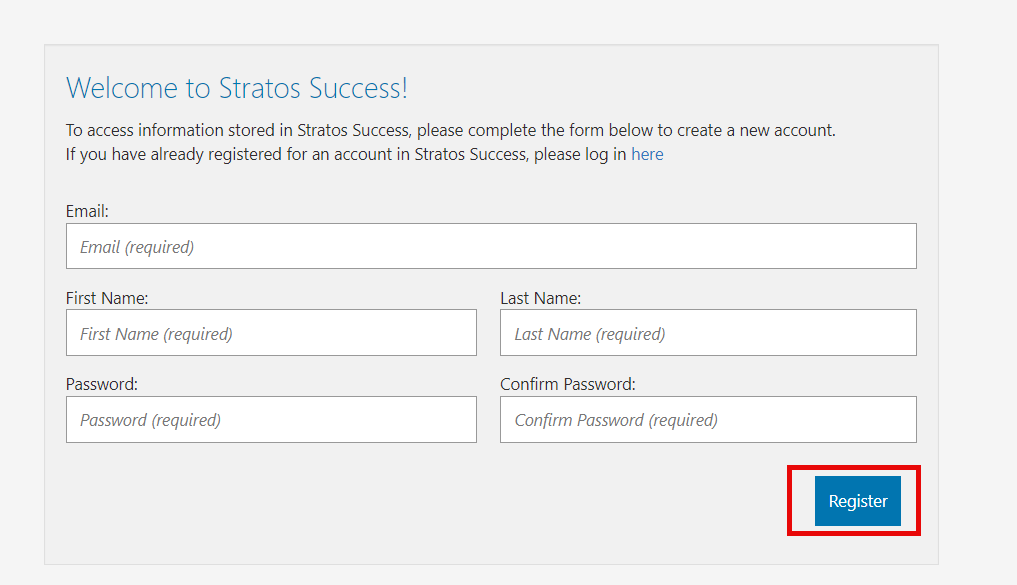
The Progressus BootCamp main page opens, and you can begin the course from any lesson that interests you.
For Resource Planning specific training, see:
| Lesson | Topic |
|---|---|
| Lesson 2 | Progressus Resource Planning - Capacity and Project Load |
| Lesson 4 | Resource Board - Scheduling in Progressus |
| Resource Reports in Progressus |