Progressus Quick Guide to Expense Sheet Entry and Approval
This Quick Guide is your go-to resource for everything related to entering or approving expenses in Progressus. Whether you're doing Expense Sheet Entry, Mobile Expense Entry, Expense Journal Entry, or want to learn how to approve expense entry, you'll find all the essential information here — including helpful training videos and step-by-step instructions. The Quick Guide is designed to make your experience smoother and more efficient, all in one convenient place.
Expense Entry Overview in Progressus
Expense Entry in Progressus provides an easy way for Resources to record the costs they incur while working on Projects, Tasks, or internal activities. Each expense line captures important details—including the Project, Task, Description, and Expense Amount—creating a clear and reliable record of Project‑related spending. These entries support accurate project accounting, reimbursement, and approval workflows throughout the Project lifecycle.
This is the full workflow for Expense Sheet entry, Approval, and Posting, if all the Progressus Expense Sheet features are enabled.
- Expense Sheet Configuration
- Enter and submit Expense Sheet
- View Expense Sheets
- Approve, Reject, Reopen Expense Sheets
- Post Expense Sheets
- Post Purchase Invoice
Expense Sheet Setup
This section covers the key setup elements required before users can successfully enter and approve Expense Sheets in Progressus. It covers the configuration of expense‑related codes, posting options, approval workflows, and permissions that control how expenses are captured, validated, and posted to Projects and financials. Proper setup is essential because it ensures expense entries follow organizational rules, calculate costs correctly, route through the right approval processes, and post accurately to the General Ledger, Project Ledger, and Project Detailed Ledger.
| Topic | Description | Link |
|---|---|---|
| Project Expense Card |
This article explains how Project Expense Types define the categories used for entering expenses, including settings for posting behavior, cost classification, tax rules, and profit calculations. Each type is managed through a Project Expense Card, where you configure units of measure, mileage options, standard costs, and pricing or profit methods such as cost‑plus or fixed-price. These settings ensure expenses are accurately costed, invoiced, and posted throughout Progressus Projects. |
Project Expense Card |
| Expense Payment Types | This article explains how Expense Payment Types define default posting behavior when creating Expense Sheets, determining where each expense is recorded—such as Accounts Payable for company‑paid credit card charges or the General Ledger for other costs. These Payment Type Codes are fully user‑defined, allowing organizations to tailor how expenses flow through their financial processes. | Expense Payment Types |
| Project and Task Permissions | Project Permissions can limit which users are allowed to view or enter transactions for a given Project, helping to control access and maintain data integrity. | Permissions Overview |
| How to Set Up a Resource as a Vendor | To reimburse a Resource for out‑of‑pocket expenses, the Resource must be set up as a Vendor, and the assigned Vendor Number added to their Resource Card. This article outlines the steps required to complete that setup. | How to Set Up a Resource as a Vendor so they can be Reimbursed for Expenses |
| How to Set Up Email Notifications of Approved or Rejected Expense Sheets | Email notifications can be sent to Resources when an Expense Sheet is approved or rejected. This article outlines the steps needed to enable and configure those optional notifications. | How to Set Up Email Notifications of Approved or Rejected Expense Sheets |
Expense Sheet Entry Overview
Progressus offers three options for entering expenses in Progressus:
| Topic | Description | Link |
|---|---|---|
| Expense Sheet Entry |
This article explains how users create, submit, and manage Progressus Expense Sheets for Project‑related costs. It covers entering expense details, tracking totals such as company‑paid and employee‑paid amounts, and updating posting dates and statuses. The guide also describes how Expense Sheets move through approval stages and how expenses ultimately post for reimbursement or financial processing. |
Enter and Approve Expense Sheets |
| Mobile Expense Entry | Learn how to use the Progressus Mobile App to enter Project Expenses. | Video on Mobile Expense Entry |
| Expense Journal | This article helps users understand how expense entries recorded on an expense sheet can be imported into the Expense Journal for posting. It highlights how to review expense details including totals, payment types, and tax calculations, before finalizing them for financial processing. This step ensures expenses are properly posted to the correct accounts and reflected in project and reimbursement records. | Enter Expenses into the Expense Journal |
Enter and Submit Expense Sheets
| Topic | Description | Link |
|---|---|---|
| Create an Expense Sheet |
This article explains how users generate a new Expense Sheet from the Expense Sheet List or Resource Card. It covers completing key header fields such as Expense Sheet Date, Resource, Posting Date Override, and tracking totals for company‑paid, employee‑paid, advances, and reimbursements. Users then add expense lines, enter details for each expense, and prepare the sheet for submission and approval. |
Create an Expense Sheet |
| How to Enter Invoice Comments on an Expense Sheet |
This article provides information on how to enter Invoice Comments on a Progressus Expense Sheet to clarify the purpose of each expense, speed up approvals by reducing questions, and strengthen audit trails and compliance. |
How to Enter Invoice Comments on an Expense Sheet |
| How to Enter an Expense Sheet for Another User | This article provides information on entering an Expense Sheet for another user ensuring expenses are captured accurately and on time when team members are unavailable. It keeps project costs up to date, maintains continuity in approval workflows, and prevents delays in reimbursement or billing. | How to Enter an Expense Sheet for Another User |
| How to Enter Amounts Including Tax or VAT | This article provides information on a Tax Group Code that is necessary before entering Tax or VAT amounts on an Expense Sheet. | How to Enter Amounts Including Tax or VAT |
| Create an Expense Sheet Report | This article provides information on running a report containing the information for an Expense Sheet. | Expense Sheet Report |
| How to Add Credit Card Fees to an Expense Sheet | This article helps Users understand how to add credit card fees to an Expense Sheet by selecting the appropriate expense line and entering the fee amount in the Credit Card Adj. LCY field. These fees must be linked to a valid Expense Code with an established posting account in Project Expense Posting Setup. This ensures the fee is properly recorded and included in the total expense amount | How to Add Credit Card Fees to an Expense Sheet |
| How to Copy Attachments to an Expense Sheet | This article covers the essentials of how to copy attachments to an Expense Sheet, after completing the necessary fields on an Expense Line. | How to Copy Attachments to an Expense Sheet |
Additional Options for Creating Expense Entries in Progressus
| Topic | Description | Link |
|---|---|---|
| Enter Expenses into the Expense Journal | This article provides information on entering Expenses into the Expense Journal. This feature allows users enter expense details into the Expense Journal for posting. It ensures each expense is reviewed for accurate totals, tax amounts, and payment types before being finalized. | Enter Expenses into the Expense Journal |
| Create a New Expense Journal Batch by Importing Values |
This article covers the essentials of creating an Expense Batch to import an Excel file, with Expense detail data, for posting from the Expense Journal. |
Create a New Expense Journal Batch by Importing Values |
View Expense Sheets
| Topic | Description | Link |
|---|---|---|
| Role Center - Open Expense Sheets |
The Role Center provides information on the open Expense Sheets for the Resource of the user currently logged into the company. Expense Sheet Status is also available by navigating to the Resource Card > Actions > Expense > Open Expense Sheets or Expense Sheet Archives. |
Role Center > Activities |
Approve, Reject, or Reopen Expense Sheets
| Topic | Description | Link |
|---|---|---|
| How to Approve or Reject an Expense Sheet |
This article provides information on approving or rejecting Expense Sheets. |
How to Approve or Reject an Expense Sheet |
| How to Reopen an Expense Sheet | This article provides instructions on where and how to reopen an Expense Sheet. Note that Expense Sheets cannot be reopened after they have been posted, ensuring data integrity once final | How to Reopen an Expense Sheet |
| How to Approve or Reject an Expense Sheet | This article provides information on approving or rejecting Expense Sheets on the Expense Approval page. | How to Approve or Reject an Expense Sheet |
| How to Resubmit a Rejected Expense Sheet | This article provides step-by-step instructions on how to resubmit an Expense entry that has been rejected. | How to Resubmit a Rejected Expense Sheet |
Post Expense Sheets
Posting is the final step that transfers Expense Entries into the financial and Project accounting records. Until an Expense Sheet is posted, the costs aren’t in the Project Budgets, WIP, or the General Ledger. Posting ensures expenses are validated, approved, and recorded accurately so Project costs, reimbursements, and financial reporting stay correct and up to date.
| Topic | Description | Link |
|---|---|---|
| How to Post an Expense Sheet |
This article provides information on posting an Expense Sheet in the Expense Journal. |
How to Post an Expense Sheet |
Post Purchase Invoice
Once the Expense Sheet has been approved (if required) and posted, a Purchase Invoice is created in the Purchase Invoices page. Navigate to the page and choose Post from the menu. For more information, see: Posting Purchases
Note
Purchase documents are only created if the Expense Payment Type > Expense Posting field is set to 'AP'. For more information on Expense Payment Types, see: Expense Payment Types.
Progressus BootCamp - Expense Sheets
The Progressus BootCamp is a free, self-paced online course designed to help you master everything from initial setup to advanced processing in Progressus. Whether you are getting started or looking to sharpen your skills, this course offers step-by-step guidance to support your journey.
Self-Registering for Progressus BootCamp
Note
The Progressus BootCamp is hosted on the Stratos Cloud, which is part of the Velosio and Progressus ecosystem.
Click the following link to register: https://success.stratoscloud.net/Invite?auth=EI6wzAGXJ0PdF7Ao
Complete the form and click Register.
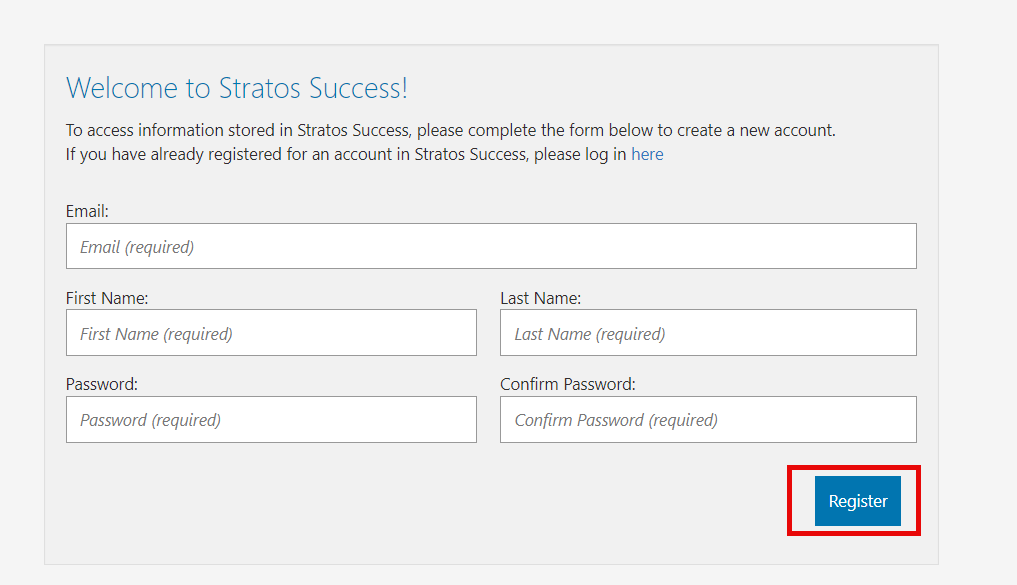
The Progressus BootCamp main page opens, and you can begin the course with any lesson that interests you.
For Expense Sheet specific training, see: