Progressus Quick Guide to Resource Setups
This Quick Guide is your go-to source for everything related to setting up and configuring Resources in Progressus. Whether you're doing initial configurations, or just looking at how to add a Resource, you'll find all the essential information right here -including helpful training videos and step-by-step instructions. It's designed to make your experience smoother and more efficient, all in one convenient place.
Resource Setups
The information provided here links to online learning resources about the Progressus configurations that support the entry and workflow of Timesheets, Resource reporting, and analysis.
Prerequisites to Setting Up a Resource
This section outlines the required set up steps that must be completed before you can create a Resource in Progressus.
| Topic | Description | Link |
|---|---|---|
| Timesheet Configuration List (required for time entry) |
Timesheet Configuration controls general settings, including the work week’s starting day, time validation rules, options for time-entry duration (e.g., week, month), and approvals. |
Timesheet Configuration List |
| Project Resource Posting Setup (required if posting Labor to GL) | Use Project Resource Posting Setup to select the default Posting Accounts by Start Date, and filters for Project No., Task No, Resource Group, and Work Type Code.. | Project Resource Posting Setup |
| Resource Groups and Sub Groups | This article explains how to set up and organize Resources using Resource Groups and Subgroups in Progressus. It covers why grouping Resources is helpful for planning and reporting, and shows how to create and manage these group structures to keep your Resource setup clear and efficient. | Resource Groups and Sub Groups |
| Resource Groups, Timesheet Entry and Billable Rates (required if invoicing) | This article explains how Resource Groups influence Timesheet entry, and based on the setup, can determine the cost and billable rates applied. Users can change the Resource Group during Timesheet entry—if the Project allows—so the pricing billed to the customer adjusts accordingly. | How Resource Groups affect Timesheet entry and billable rates |
| Use Timesheets for Projects | Before you can use Timesheets, you must set up general information and decide if Timesheets will require approvals from a Project Manager/Person Responsible for the Project, Line Manager/Line Manager 2 for the Resource, and/or Project Executive. This article covers a wide range of topics necessary to set up and use Timesheets in Progressus. | Use Timesheets for Projects |
| Configure Resources Setup |
This article reviews the default selections on the Resources Setup page. | Configure Resources Defaults |
| Invoice Specifications Setup | Use the Invoice Specifications Setup page to configure how detailed Resource and Expense information is presented as a supplemental report for invoices. | Invoice Specifications Setup |
| Norm Time Setup | Norm Time is a required setup for Resources and defines their standard work week. Each Resource has a Time Configuration Code, on the Resource Card > Timesheet FastTab, which contains a Norm Time Code and defines the expected time entry setup. | Norm Time Setup |
| Norm Time Codes | Norm Time Codes are created on the Norm Time List page. This Norm Time can be used to generate an error message during time entry if the Timesheet is not in compliance with the employee's standard work week. Examples are 4-10, meaning 4 days 10 hours per day, 5-8, meaning 5 days 8 hours per day. Norm Time is used when generating capacity for each Resource, which can be used for budgeting. The Update Capacity feature generates maximum availability for a Resource based on their normal working schedule (Norm Time). | Create new Norm Time Codes |
| Norm Time Exceptions | Use this page to define exceptions to Norm Time. Examples of this would be parental leave, leave without pay, paid holidays, or vacation time. | Norm Time Exceptions |
| Norm Working Hours | Norm Working Hours define standard working hours for Resources. This page can also be used to set temporary exceptions with a Start Date, such as reduced hours for a specific period. | Norm Working Hours |
| Qualifications Types | Qualification Types provide an overview of employee or resource qualifications relevant to job requirements and are used for reporting only. | Qualifications Types |
| Use Resource Templates | This article covers setting up Resource Templates which provides a way to standardize the setup of Resources. After a Resource Template is defined, it can be inserted into any Resource Card. Resource Templates can be selected in the Resource Card or from the Resource List. | Create Resource Templates |
| Import Resources | This article covers the Import Resource page which gives users the ability to create one or multiple Resources using an Excel template. | Import Resource |
Resource Setup for Time Entry
| Topic | Description | Link |
|---|---|---|
| Set up Resources (required for Time Entry) |
This article provides an overview of what is required to set up Resources for Time Entry. (required for Time Entry) |
Set Up Resources |
| Resource Base Unit of Measure (required for Time Entry) | Allows Resources to be assigned to a specific Unit of Measure for Time Entry. It also allows the conversion of a Unit of Measure to another Unit of Measure. | Resource Card > General FastTab |
| Create Time Periods/Periods List (required for Time Entry) | Time Periods are required for Resources to enter Timesheets and can be set by day, week, split week, bi-weekly, semi-monthly, or month. Each Resource has an assigned Timesheet Period, and the Create Time Periods process must be run for all Resources who will submit Timesheets. | Periods List |
| Week Maintenance | This article covers how Week Maintenance is used to define the Salary Factor percentage used for salaried Split Week Resources for both weeks in the split period. | Week Maintenance |
| Update Capacity (required for Resource Planning) | Update Capacity is used to calculate the number of available hours for Resources based on Norm Time, their normal working schedule. | Update Capacity |
| Project and Task Permissions | Each Project can restrict Time and Expense Entry based on permissions defined on the Project Card → Permissions FastTab. These settings determine whether a Resource is allowed to see and enter time for specific Projects or Tasks, shaping what appears in their Timesheet and preventing unauthorized entries. | Project and Task Permissions |
Defining Resource Costs and Prices Prior to Processing
| Topic | Description | Link |
|---|---|---|
| Set up Resource Costs (required for Time Entry) |
Progressus Resource Costs can be determined by the Resource Card, Resource Group or specific costs in the Resource Cost setup page. |
Set up Resource Costs |
| - The system follows a hierarchy to determine the cost used for each transaction created. | Resource Cost Hierarchies | |
| Set up Resource Prices (required for invoicing) | Progressus Resource Prices can be determined by the Resource Card, Resource Group or specific prices in the Resource Prices setup page. | Set up Resource Prices |
| - The system follows a hierarchy to determine the price used for each transaction created. | Resource Price Hierarchies | |
| Microsoft Sales Pricing Experience | Progressus supports the Microsoft Dynamics 365 Business Central Sales Pricing Experience for Resources, which can be enabled through Business Central’s Feature Management. Once activated, Business Central’s pricing engine replaces Progressus Item Pricing, though users can still switch back to Progressus Resource Cost and Pricing through Progressus Feature Management. The Microsoft pricing model changes how Resource Costs and Prices are determined by leveraging the standard Business Central pricing hierarchy. | Microsoft Sales Pricing Experience |
Progressus BootCamp - Resource Setups
The Progressus BootCamp is a free, self-paced online course designed to help you master everything from initial setup to advanced processing in Progressus. Whether you're just getting started or looking to sharpen your skills, this course offers step-by-step guidance to support your journey.
Self-Registering for Progressus Bootcamp
Note
The Progressus BootCamp is hosted on the Stratos Cloud, which is part of the Velosio and Progressus ecosystem.
Click the following link to register: https://success.stratoscloud.net/Invite?auth=EI6wzAGXJ0PdF7Ao
Complete the form and click Register.
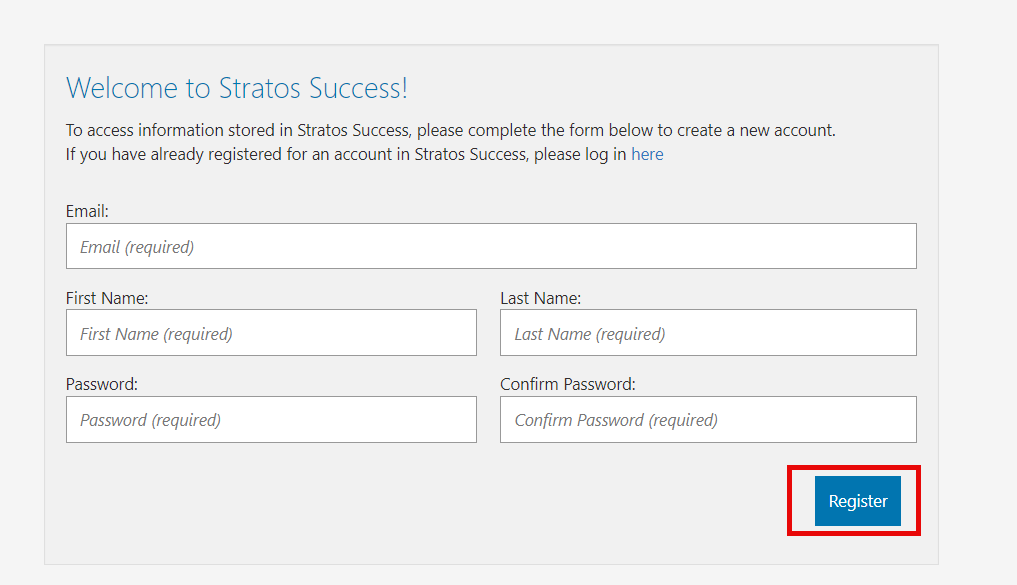
The Progressus Bootcamp main page opens and you can begin the course from any lesson that interests you.
For Resources specific training, see: